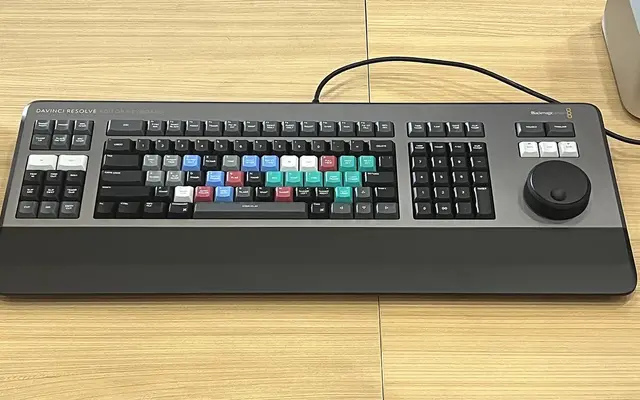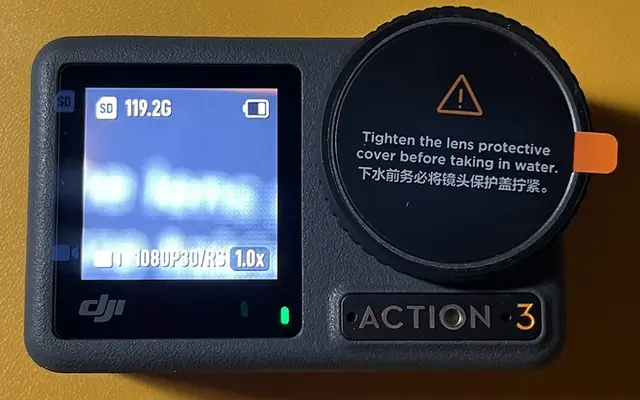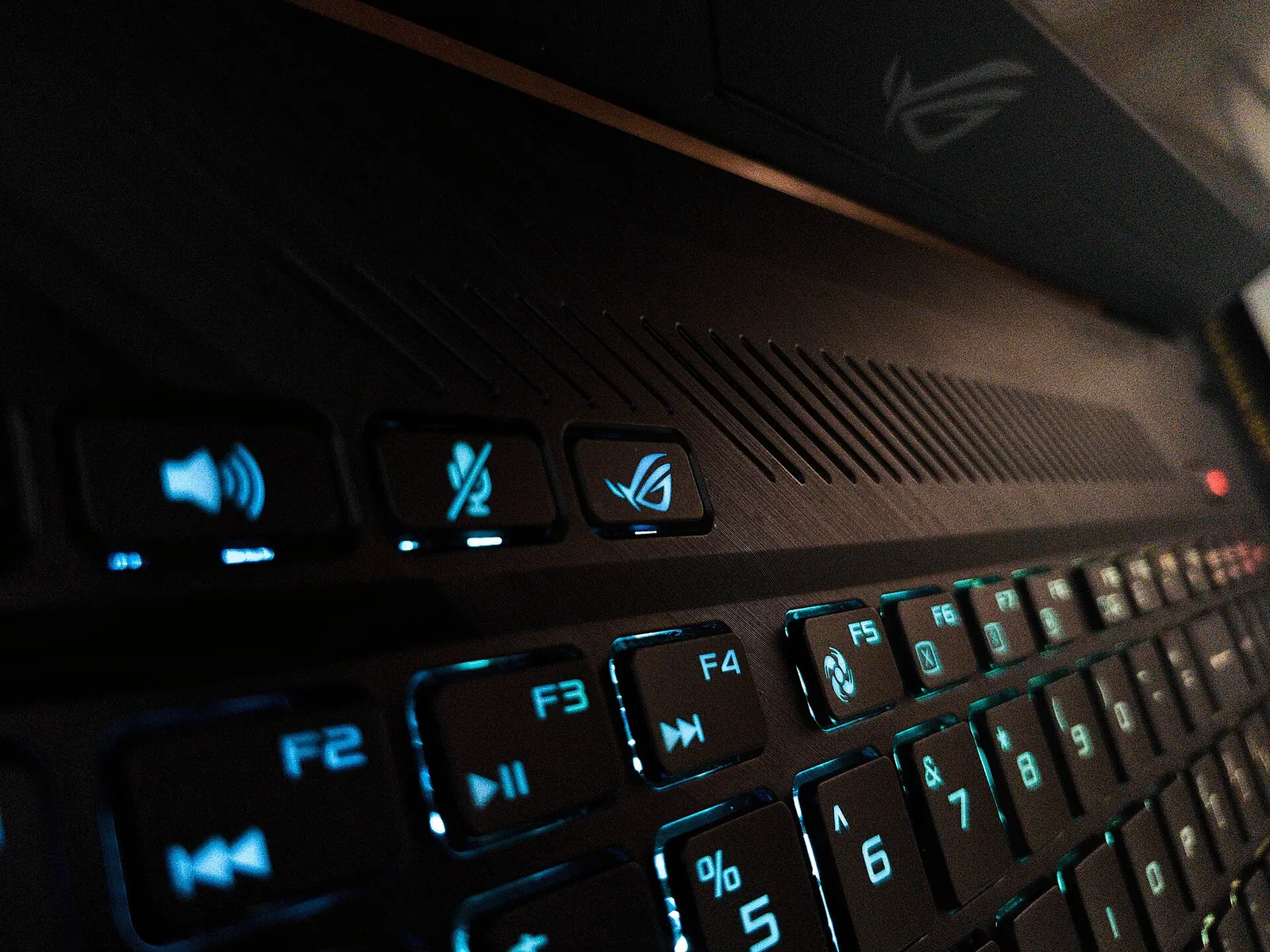
An older gaming laptop like my 2019 ASUS ROG Strix G15 (G531GT) can still edit 4K travel footage, because its GTX 1650 has a hardware decoder that handles 8-bit H.264 and 10-bit 4:2:0 H.265 camera files. What it can't do is hold heavy effects in its 4 GB of video memory. Edit on proxies, keep the timeline at 1440p, keep Fusion effects light, and it gets the job done; push it with 4K timelines and stacked effects, and Resolve runs out of GPU memory and crashes.
- GTX 1650 decoding: NVIDIA's matrix lists 8-bit H.264 and 8/10/12-bit 4:2:0 HEVC, but no 10-bit H.264, no 4:2:2 and no AV1.
- 4 GB of VRAM is the real limit: Resolve logged "Low GPU memory" from Fusion before my crashes on a 4K timeline.
- 1440p timeline, 1080p proxies: the settings that made a 20-minute episode workable on this machine.
- Hardware decoding of H.264 and H.265 in DaVinci Resolve is a Studio feature; the free version decodes them on the CPU.
- Under 9%: hardware video decoders used less than a tenth of the energy of optimised software decoders in a 2024 study.
I edit my travel films in DaVinci Resolve Studio on an ASUS ROG Strix G15 G531GT from 2019: an Intel Core i7-9750H, an NVIDIA GTX 1650, 32 GB of RAM, two 1 TB Crucial SSDs (a P3 NVMe and a BX500 SATA) and a 1920 × 1080, 120 Hz panel. It also drives an external 2560 × 1440 monitor. The footage comes from a DJI Osmo Action 4, a Samsung Galaxy S25+ and a Sony ZV-E10.
Manual editing was the part I struggled with, and using Claude Code is what finally got the vlogs made. That makes this laptop an honest test: a five-year-old mid-range GPU cutting a multi-episode series. Everything below is either from the makers' spec pages or from what happened on this machine while editing The Sikkim Diaries.
HEVC, the codec most cameras and phones now record in, was approved by the ITU as H.265 on 13 April 2013. It promised 25-50% better compression than H.264 at the same quality: 4K at 30 fps in about 50 Mbps instead of 100. The trade was work. Squeezing that much out of every frame took far more processing, and early 10-bit HEVC clips crawled on ordinary computers.
On 22 January 2015, NVIDIA released the GeForce GTX 960, built on the GM206 chip. It was the first discrete graphics card with a full fixed-function HEVC decoder for both Main and Main10, the 10-bit profile. A block of silicon designed to play games had quietly become a video-editing part, and every gaming laptop since, mine included, has carried one.
Wikipedia: High Efficiency Video Coding (history and implementations, with cited sources)Is an old gaming laptop good for video editing?
Yes, if its GPU can decode your camera's exact file format and you work around its video memory. A gaming laptop already has what editing needs: a dedicated GPU, a six-core CPU, room for two SSDs and a cooling system built to run them flat out. Here is what mine has, and what each part means for editing.
| Part | ROG Strix G15 G531GT (2019), my unit | What it means for editing |
|---|---|---|
| CPU | Core i7-9750H, 6 cores, 2.6 GHz base, up to 4.5 GHz | Timeline logic, audio, CPU-side effects, software decode in the free Resolve |
| GPU | GTX 1650, 4 GB GDDR5 | Hardware decode in Studio; grading, Fusion and AI tools all share the 4 GB |
| Display | 15.6-inch 1920 × 1080 IPS-level, 120 Hz; external 2560 × 1440 monitor | The laptop panel is smaller than my 1440p timeline; the external one shows it at 1:1 |
| RAM | 32 GB (two SO-DIMM slots, 32 GB is ASUS's stated maximum) | Resolve itself can hold 17-23 GB on a busy project |
| Storage | 1 TB Crucial P3 NVMe + 1 TB Crucial BX500 SATA | Footage, proxies and cache on the fast drive; system and archive on the other |
The CPU and RAM have aged well. The GPU is the part that sets every limit below, not because it decodes too little, but because 4 GB of VRAM fills up long before the decoder runs out of work.

Will a GTX 1650 decode your camera's files?
It depends on three properties of the file: codec, bit depth and chroma subsampling. Check them in MediaInfo before you blame the laptop, as Puget Systems advises in its decoding tests. NVIDIA's own decode support matrix lists the GTX 1650 with a Turing-generation NVDEC block and this support:
| Format | GTX 1650 hardware decode (NVIDIA matrix) |
|---|---|
| H.264 4:2:0, 8-bit | Yes |
| H.264 4:2:0, 10-bit | No |
| HEVC (H.265) 4:2:0, 8, 10 and 12-bit | Yes |
| HEVC 4:2:2 | No |
| AV1 | No |
Here is how that lines up with my cameras. I checked the actual files from the Sikkim ride rather than the brochures:
- Osmo Action 4: 2.7K (2688 × 1512) 10-bit 4:2:0 HEVC on the first days, then 4K 8-bit H.264 at 50 and 25 fps. Both decode on the 1650.
- Galaxy S25+: 4K 10-bit HEVC HDR, plus a few 8K clips in 8-bit HEVC. Both are 4:2:0 HEVC, so both are on the supported list.
- Sony ZV-E10: XAVC S, 8-bit 4:2:0 H.264 per Sony's spec sheet, the easiest format on the list.
So decoding was never my problem. If your camera records 10-bit H.264 or anything 4:2:2, the 1650 can't help; those files fall back to the CPU, and the honest fix is proxies or a newer GPU.
The authors compared decoding energy for six codecs, AVC (H.264), VP9, HEVC, AV1, VVC and AVM, on reference and optimised software decoders (measured with an Intel i7-8700's RAPL counters) and on the hardware decoder of a Rock 5B board (measured with an external power meter), using 4K, full-HD and HD test sequences.
Hardware decoders cut energy to less than 9% of their optimised software counterparts, and HEVC was the hardware sweet spot, only about 6% above VP9. Limit: an ARM board's video unit, not an NVIDIA laptop GPU. The principle carries over: fixed-function decoding is far cheaper than doing it on CPU cores, which means less heat and fan noise on an older laptop.
Read the paper (free)What does 4 GB of VRAM actually limit?
Everything that happens after decoding. Grading nodes, Fusion compositions, noise reduction and AI masks all keep frames in video memory, and on a 4K timeline each frame is four times the pixels of 1080p. On this laptop that is where things broke, not in playback of the camera files.
- Crashes on a 4K timeline: while editing episode two, Resolve's log showed "Low GPU memory" from Fusion, then a crash. Every shot was running Fusion looks on a 3840 × 2160 timeline.
- A lost night: one GPU crash reverted a whole night of edits, because the project hadn't saved after the last changes.
- A dead render: on 30 October, a roughly 10-hour master render of episode two died at 7%, a transient Fusion error with the VRAM seen at 3.8 of 4 GB.
The fix was not a new laptop. It was moving the timeline from 3840 × 2160 to 2560 × 1440, the size I export anyway, and taking temporal noise reduction and Contrast Pop out of the Fusion chains. Resolve Studio itself doesn't change any of this: the licence gives the GPU more to do, not more memory to do it in.
How do you edit smoothly on an older GPU?
Make the timeline lighter than the footage. These are the settings this laptop runs for every episode, and each one exists because something stuttered or crashed first.
- Proxies: 1080p H.264 proxies for every clip, with Proxy Handling set to Prefer Proxies. Scrubbing then reads small files the decoder handles easily.
- Playback resolution: Timeline Playback Resolution at Quarter. You judge the edit, not the sharpness, while cutting.
- Render cache: Smart, and let the red bars over effects turn blue before judging playback.
- Timeline size: 1440p. My Osmo footage is 2.7K, so a 4K timeline would only upscale it, and 1440p takes about half the render time.
- One heavy job at a time: never render while building graphics or running another big task. Resolve alone can hold 17-23 GB of RAM on a busy project.
- Render to the internal NVMe: a render to a USB drive once froze Windows on this machine.
Export is 2560 × 1440 H.264 at 24 Mbps, which is YouTube's 1440p recommendation with some headroom. More on what Studio adds to this in is DaVinci Resolve Studio worth buying.
Is the laptop screen good enough for colour?
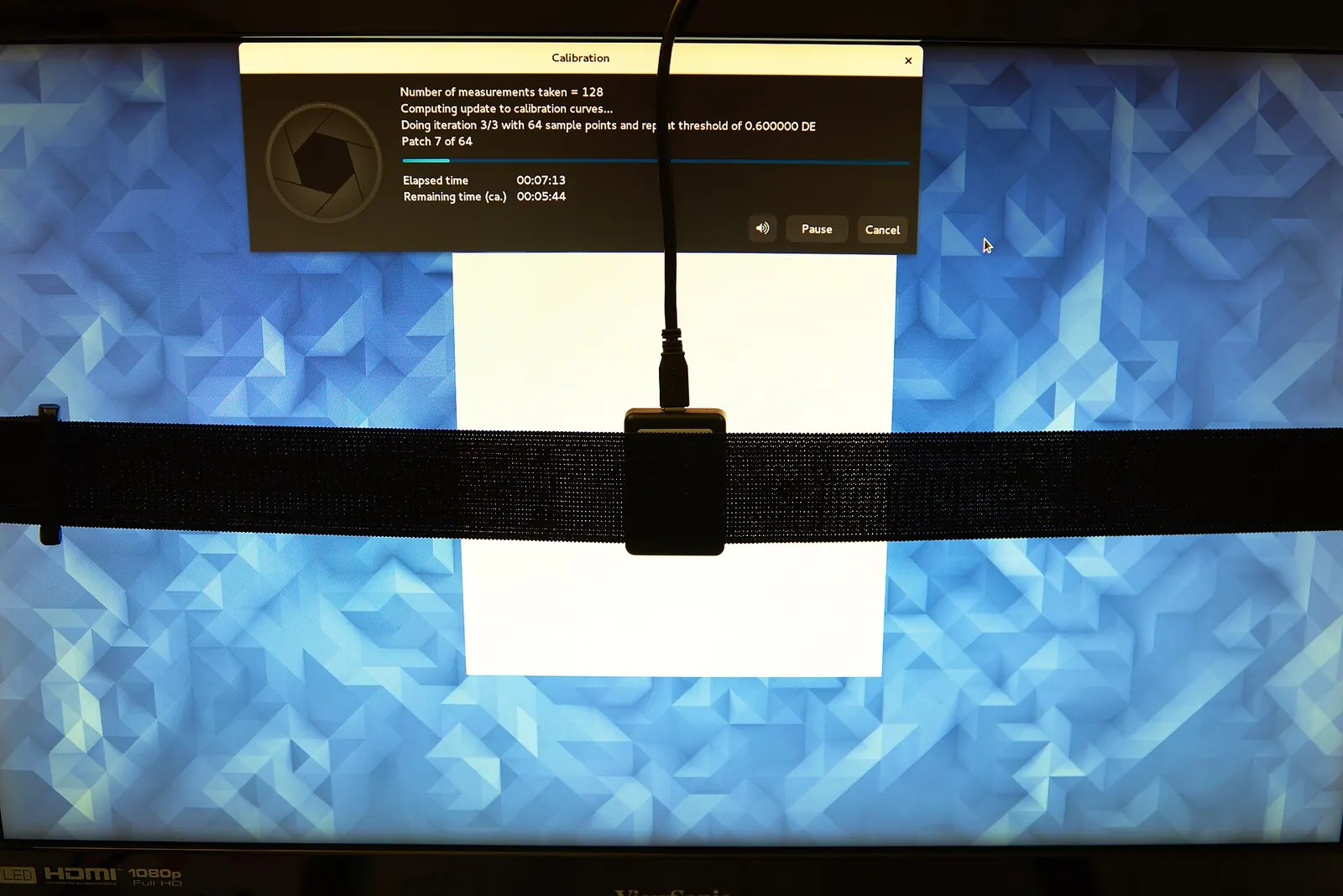
For a 1440p timeline, the laptop's own 1920 × 1080 panel is the weaker screen: it can't show the timeline at 1:1, and ASUS's spec page lists it only as an "IPS-level" 120 Hz FHD panel, with no colour gamut figure. The external 2560 × 1440 monitor fits the timeline exactly. Whichever screen you judge colour on, it is worth knowing what the accuracy numbers in reviews mean.
What ΔE means
ΔE (Delta E) is the distance between the colour a screen was asked to show and the colour it showed, computed today with the CIEDE2000 formula. Lower is better; reviewers usually treat an average under about 2 as good for photo and video work.
CIEDE2000 refines older CIELAB differences with separate weightings for lightness, chroma and hue, plus a rotation term for blues. The authors found that the original test data missed several common coding errors, so they published 34 supplementary test pairs, spreadsheets and MATLAB code, and showed the formula has three independent sources of small mathematical discontinuities, the largest from how the mean hue is computed.
Why an editor should care: the ΔE number in every display review depends on this formula being implemented correctly. Limit: it predicts perceived difference for flat colour patches under set viewing conditions, not for moving images.
Read the paper (free)- Keep the timeline Rec.709 for YouTube and Instagram delivery.
- Grade on the screen that shows the timeline at 1:1, and keep that screen's settings fixed for the whole series.
- Check on a phone before publishing; most of your audience watches there.
More on the colour maths in colour contrast explained and RGB versus CMYK.
How much storage do travel films need?
More than people expect, and running out mid-build is a real failure mode: on this laptop, the footage drive once hit 0 GB free in the middle of a rebuild. One episode's rebuild needed about 15-20 GB, and a master plus its upload file about 13 GB. At 130 Mbps, an hour of 4K from the Osmo Action 4 is about 59 GB. Use this to check what you just read.
Footage storage for one trip
At the defaults, 4 hours of mirrorless footage and 10 hours of action-camera footage come to about 765 GB per copy, 1.5 TB with one backup. That is most of a 1 TB SSD from one long trip, so keep only the active episode on the fast NVMe drive, archive the rest, and check free space before every big render.
So can a 2019 ROG Strix still edit a travel series?
Yes, with discipline. The GTX 1650 decodes every file my cameras make, the i7-9750H and 32 GB of RAM keep a long timeline responsive on proxies, and two SSDs keep footage off the system drive. The ceiling is the 4 GB of VRAM: heavy Fusion work, temporal noise reduction and 4K timelines push it over. Keep effects and templates simple, and the machine finishes episodes.
If you are buying today rather than using what you have, the rule is the same at any budget: check the decoder against your camera's files, then buy as much VRAM as you can afford.
The decoder was never the problem. Four gigabytes of video memory was.
For the footage side, read my Osmo Action 4 POV review, the S25+ as a travel camera and the ZV-E10 owner's review. The rest of my kit is on the gear page, and how AI fits into my production work is on the Applied AI page.
What's new
- Resolve Studio 20 adds 4:2:2 H.264 and HEVC decoding on RTX 50 GPUs Puget Systems, updated Jun 2025
- DaVinci Resolve 21.1 becomes the current stable release Wikipedia version history, Sep 2026
Questions people ask
Is a GTX 1650 good enough for video editing?
For cutting H.264 and 4:2:0 H.265 footage, yes: its decoder handles them in Resolve Studio. Its 4 GB of VRAM limits heavy effects, so edit on proxies, use a 1440p or 1080p timeline and keep Fusion work light.
Can a GTX 1650 decode 10-bit footage?
10-bit 4:2:0 HEVC, yes. 10-bit H.264 and any 4:2:2 format, no, per NVIDIA's support matrix; those fall back to the CPU, so make proxies.
Is 32 GB of RAM enough for 4K editing?
It is comfortable for a long 1440p timeline. Resolve on my machine has held 17-23 GB on a busy project, so 16 GB would be tight once graphics or other apps run alongside.
Should I edit on a 4K timeline if my camera shoots 4K?
Not on a 4 GB GPU. Edit at your delivery size; a 1440p timeline puts far less load on the 4 GB and renders in about half the time of 4K.
Do I need Resolve Studio on an older laptop?
For smooth H.264 and H.265 playback without proxies, Studio's hardware decode helps. With proxies, the free version can work, but it won't fix a VRAM limit.
Sources
- ASUS: ROG Strix G G531 specifications (CPU, GPU, display, memory)
- NVIDIA: Video Encode and Decode GPU Support Matrix (GTX 1650 decode support)
- Blackmagic Design: DaVinci Resolve Studio (Studio features)
- Puget Systems: H.264 and H.265 hardware decoding in Resolve Studio (2024, updated 2025)
- Crucial: P3 1 TB NVMe SSD (maker page)
- Crucial: BX500 1 TB SATA SSD (maker page)
- YouTube Help: recommended upload encoding settings (1440p bitrate)
- Kränzler, Herglotz and Kaup: Software and hardware energy efficiency of video decoders (PCS, 2024)
- Sharma, Wu and Dalal: The CIEDE2000 colour-difference formula (Color Research and Application, 2005)
- Wikipedia: High Efficiency Video Coding (approval dates, GTX 960 decoder)

Sapta (Saptarshi Sarkar) is a mechanical engineer turned marketer in Bengaluru and a solo touring rider. He writes the seven Saptaverse blogs. Work with him or read more of Artblog.